Design Explorer
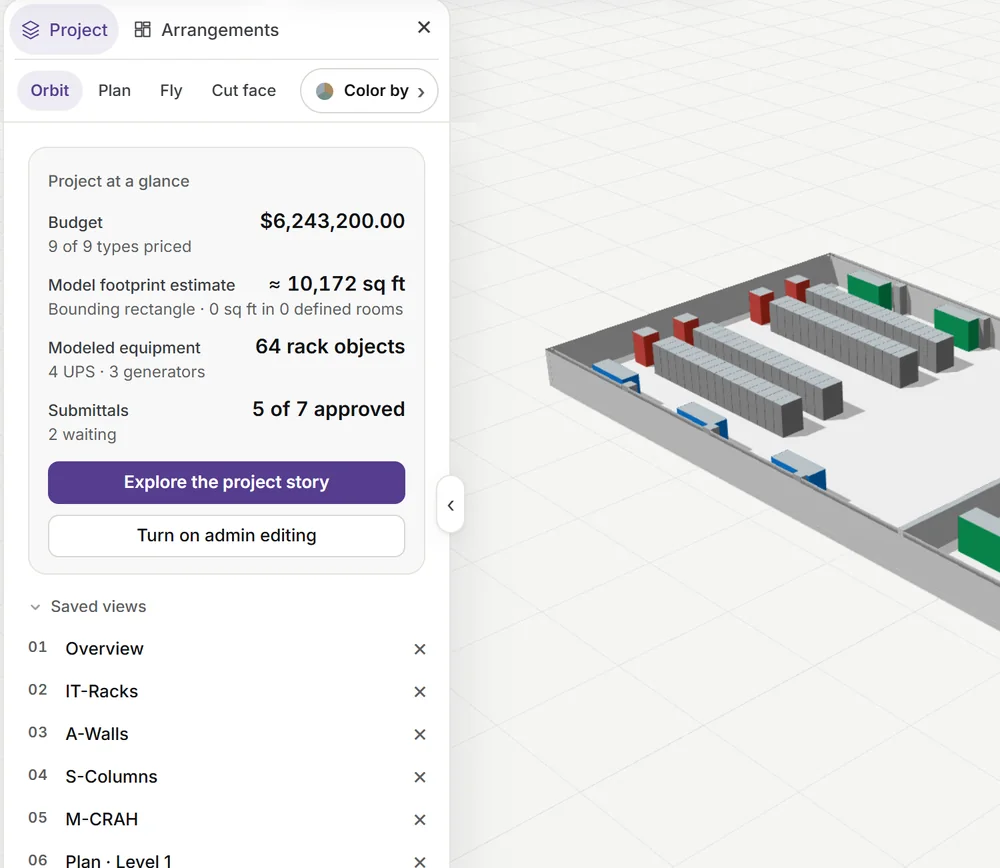
Coordination on the 3D model

The model, and everything the job needs to know about it.

Click any piece of equipment and see what it is, who supplies it, when it arrives and whether it can go in yet. One click instead of four phone calls.

Watch it work

A made-up demo project. After the first seconds, everything you see is the real app.

How it works

From one click to the job site.

The model stays the place where every piece of equipment keeps its paperwork: submittal, delivery, stage, and what it is waiting on.

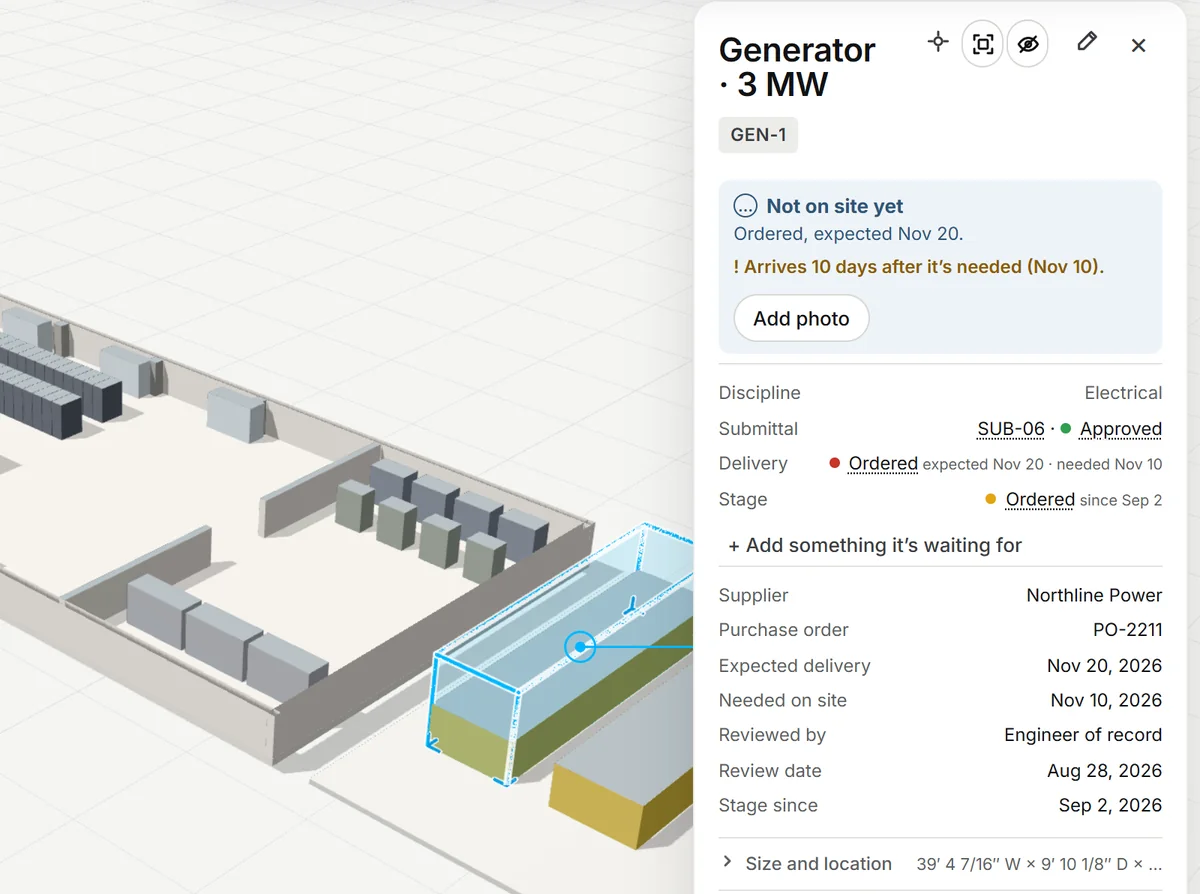
A generator's card open beside the model.
01

Click anything. See where it stands.

A generator's card says it is ordered, expected Nov 20 — and arrives ten days after it is needed on site.
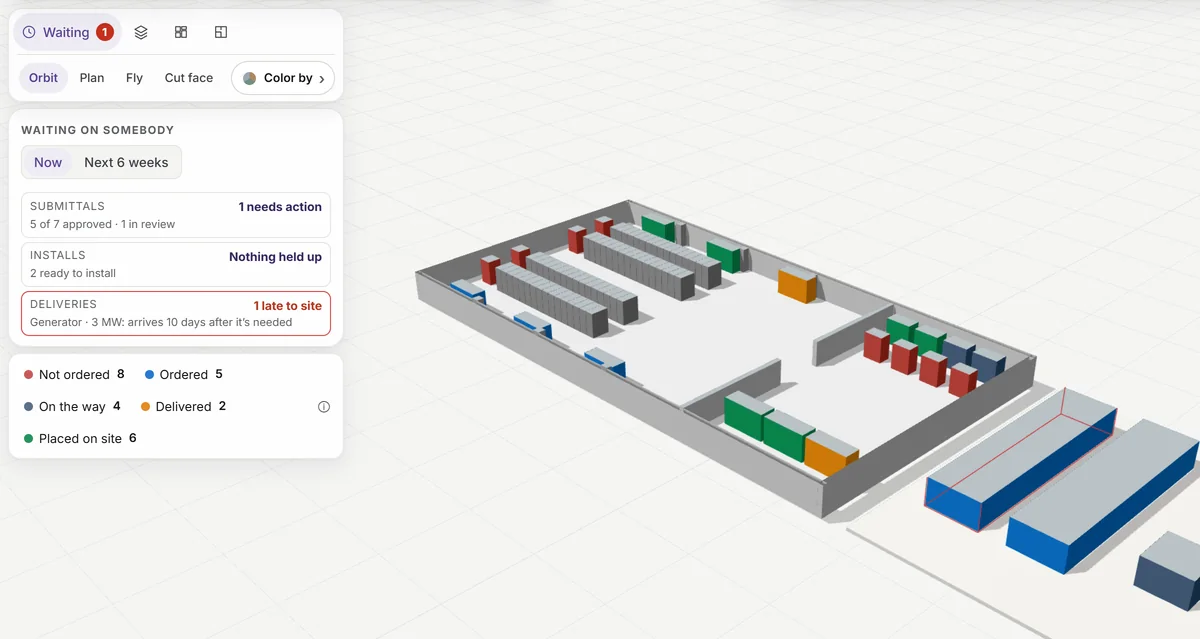
The model colored by delivery status with its key.
02

Color the whole job by delivery.

Not ordered, ordered, on the way, delivered, placed on site: a whole floor at a glance, with the count of each.
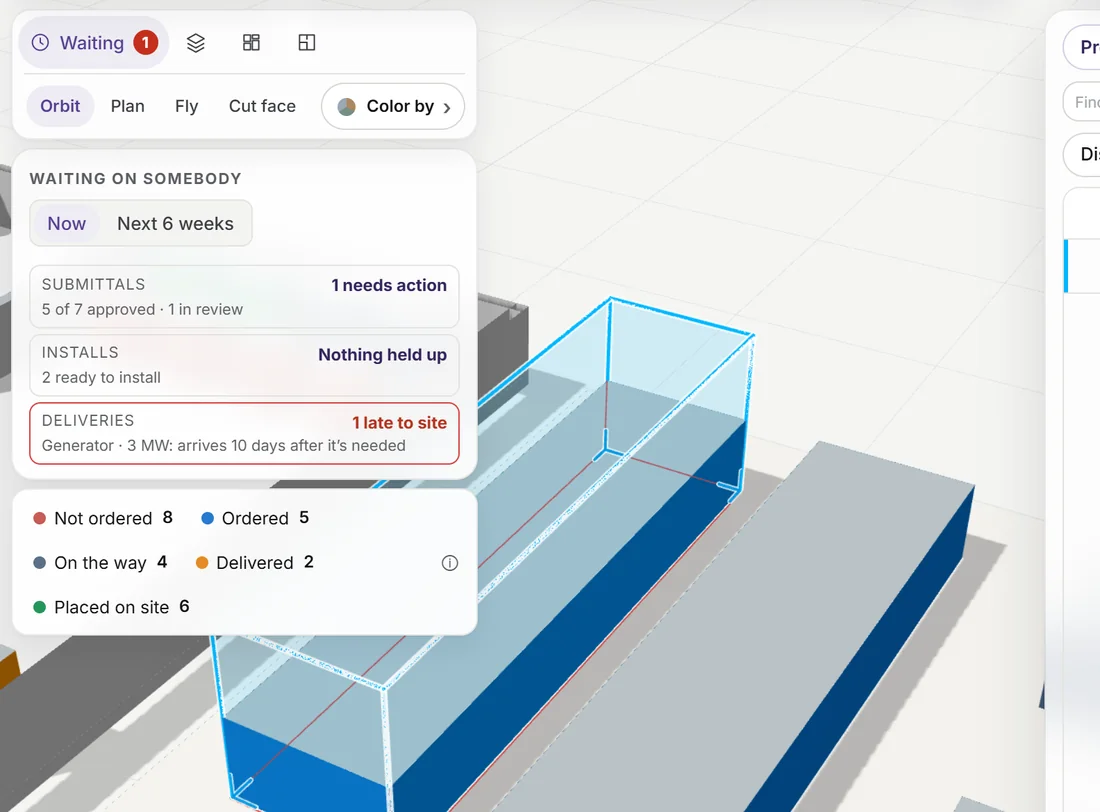
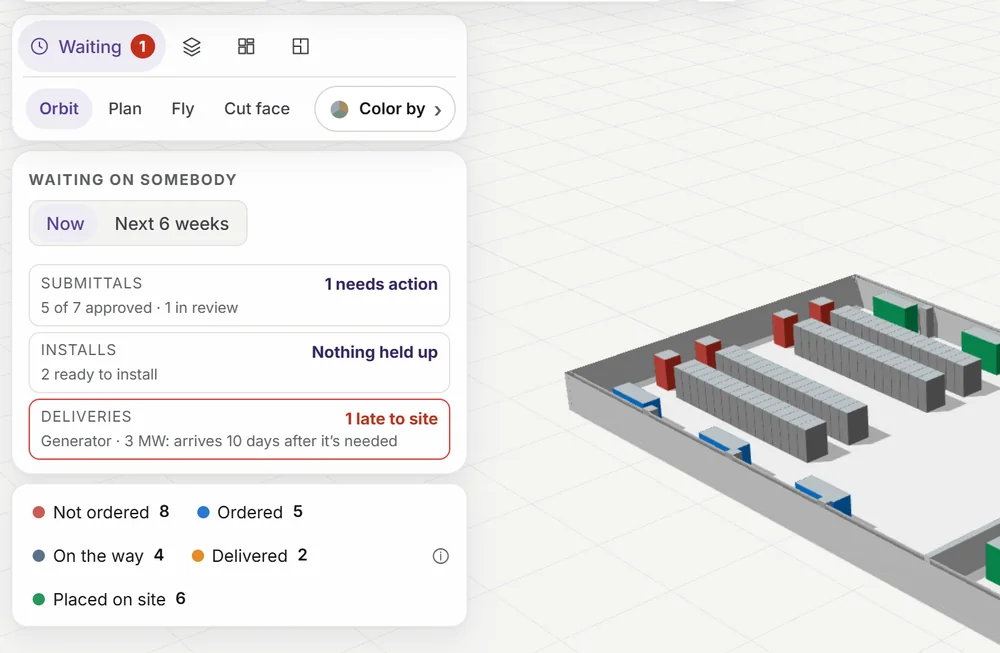
The Waiting card and the procurement table on the late generator.
03

See who it's waiting on.

Submittals in review, installs held up, deliveries late to site — each one a click away from the item on the model.
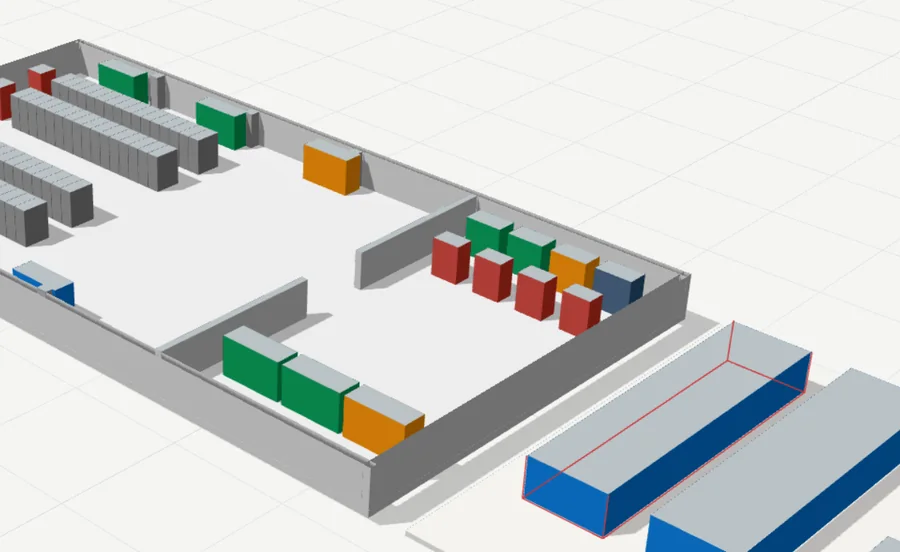
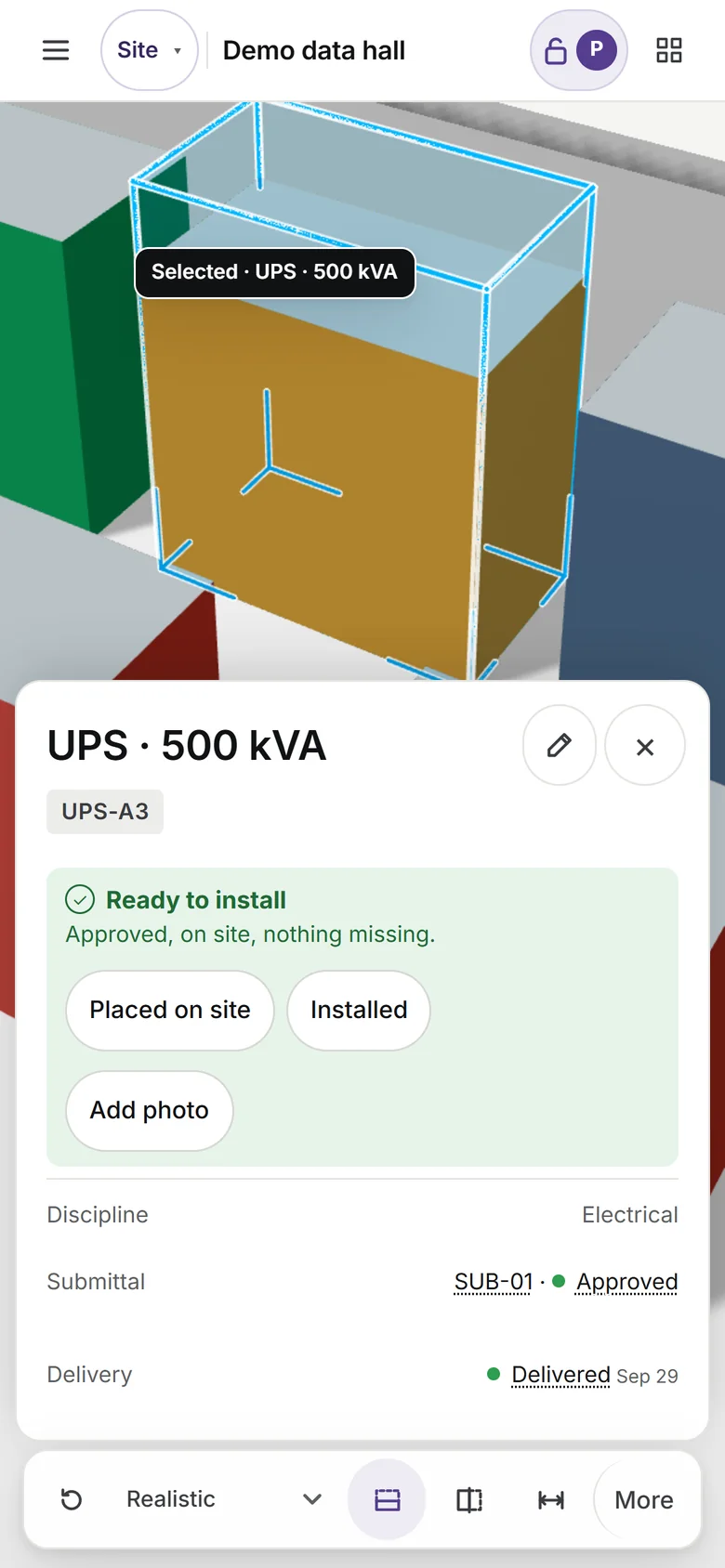
The UPS room on the office model, one UPS now amber.
The site phone after Arrived: Ready to install.
04

Mark it arrived from site.

The superintendent taps Arrived on a phone. The office model changes color the same minute.
On the office TV

The project wall.

Where the job stands, playing by itself on a TV, a computer or a phone. Nobody has to touch it.

A made-up demo project, running on a TV as deliveries arrive.

One item at a time

The model settles on each late or due item for five seconds, a step back so you see where it is. Everything else goes gray.

Type a code, once

Each TV opens its wall with an eight-character code. It shows only what that wall may show, never money, until you switch it off.

A wall for each of you

The office, the CEO, the project manager, the site, the lobby, the weekly meeting, and a wall inside the client's link.

And the paperwork around it

Everything the week needs, tied to the model.

Submittals and RFIs

Numbered logs on the objects they cover. Answers can come back through a link.

Permits and utility power

Approvals and the interconnection countdown, pinned to what they concern.

Weekly report

One click turns the week into a PDF for the team or the owner.

Sheets and presentations

True-scale plan sheets and presentation pages from live views, as real PDFs.

Estimate

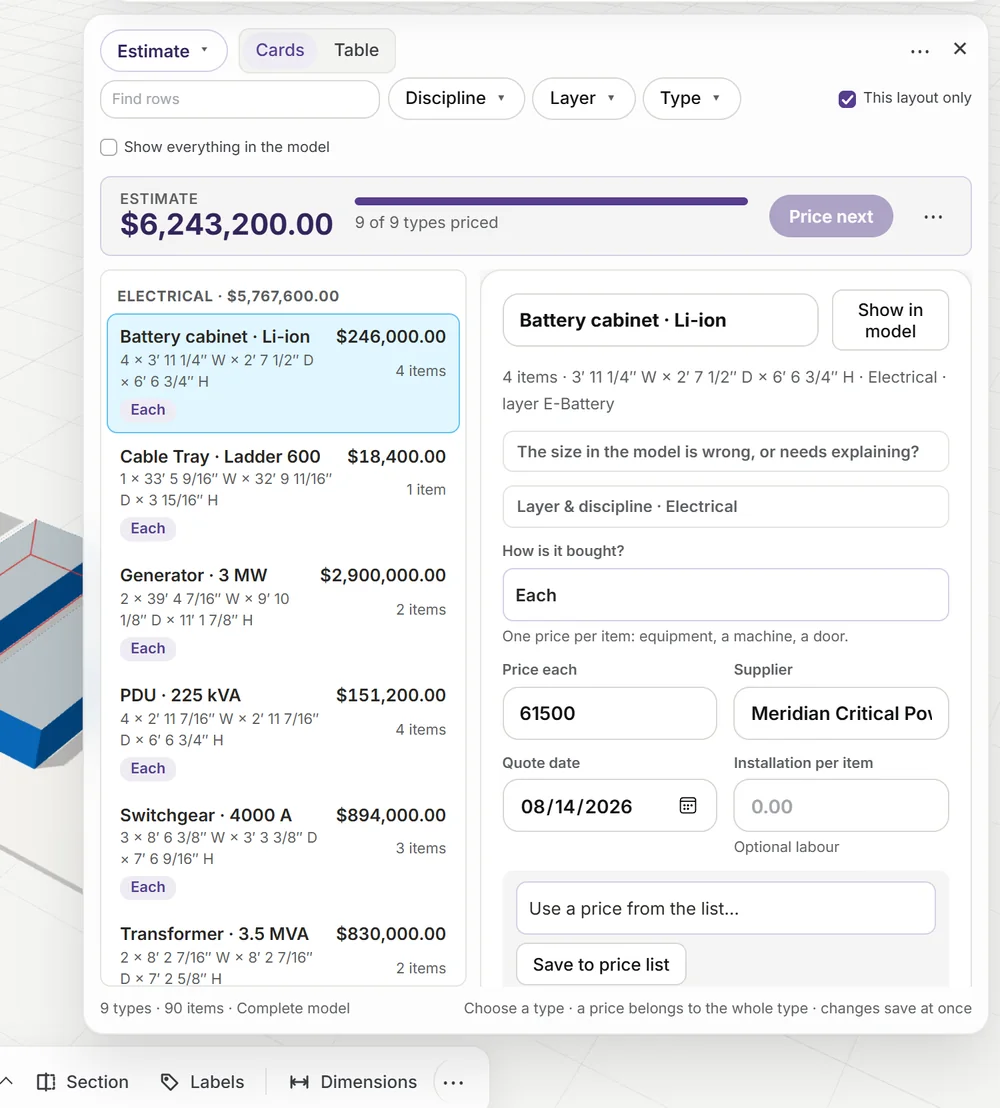
Price by type from the model's own quantities; a heat map shows where the money is.

Sections and dimensions

Cut plans and sections; dimensions that snap to the model, grids and levels.

Client links

Share exactly the view you choose, with no account and nothing to install.

Tables and Excel

Procurement, schedules and quantities, kept in step with the model; in and out of Excel.

Who uses it

Each person sees their part.

The same model, arranged for each job. Prices stay with the people who handle money.

The project manager's Waiting on somebody card and the delivery key.
Project manager

What is waiting on somebody.

Submittals in review, installs held up, deliveries late to site — now, or over the next six weeks.

  • Each row opens the items it counts
  • Late means after the needed-on-site date
If you were invited

Three things to know.

Someone on the project added you, or sent you a link. There is nothing to download.

1

Sign in, or just open your link

Team members sign in with the email address the invitation went to. A client link needs no account.

2

Click anything on the model

Its card shows the tag, submittal, delivery and stage, and what it is still waiting on.

3

Your role shapes the screen

Each person sees their part; a client sees only what was shared.

Works with

The programs you already model in.

A plug-in sends the model straight from the program and shows changes live while you work.

Revit2024 · 2025 · 2026
Rhino7 · 8
SketchUp2021 and later

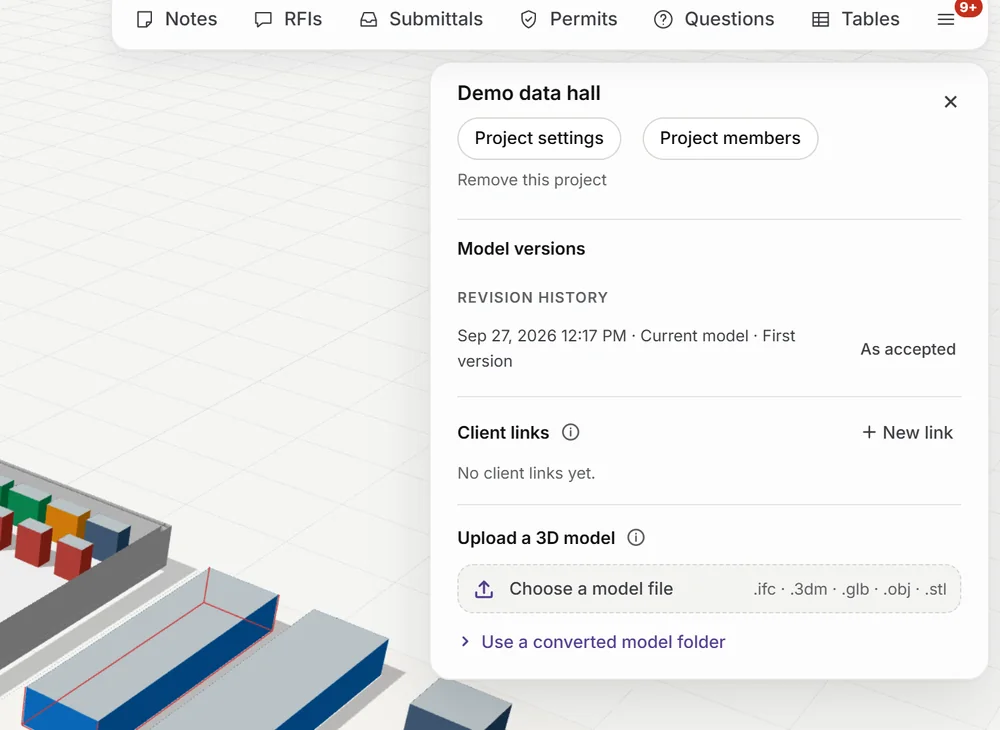
Or upload a file — IFC, glTF, Rhino 3DM, OBJ or STL — and put a PDF or image floor plan underneath the model.

For design and construction firms

Made for the stretch from design to handover.

Design Explorer is made by Gorkytecture for the months when equipment has to be designed, approved, bought, delivered and installed in the right order. It is not a CAD replacement: you keep modeling where you model.

Private and by invitation.Each firm's projects are separate and reachable only by the people it invites. Nothing is sold, shared or used for advertising. How your data is handled.
Your next project

Put the whole job on the model.

Invited already? Sign in with the account your invitation went to, or open the link you were sent.

Design Explorer

Sign in

Invited to a project? Use the Google account your invitation was sent to. We never see or keep a password.

Sent a client link? Just open the link — no account is needed.